How to Use SMS & Drip
Welcome to SMS & Drip! Follow this guide to set up your account, build automated campaigns, and master your messaging workflows on monday.com.
1 Getting Started
Start by locating the app in your monday.com workspace to begin your integration.
- Navigate to "Workspace apps" in the standard sidebar.
- Find SMS & Drip: Campaign Dashboard and click to open it.
- Click "Authorize SMS & Drip" to securely grant board permissions.
User Permissions Note: Guest Users and View-Only users will not be able to use the app. Only Members and Admins with sufficient board permissions can authorize and utilize SMS & Drip.
2 Workflow Features
A. Send Campaign (Sequence Starter)
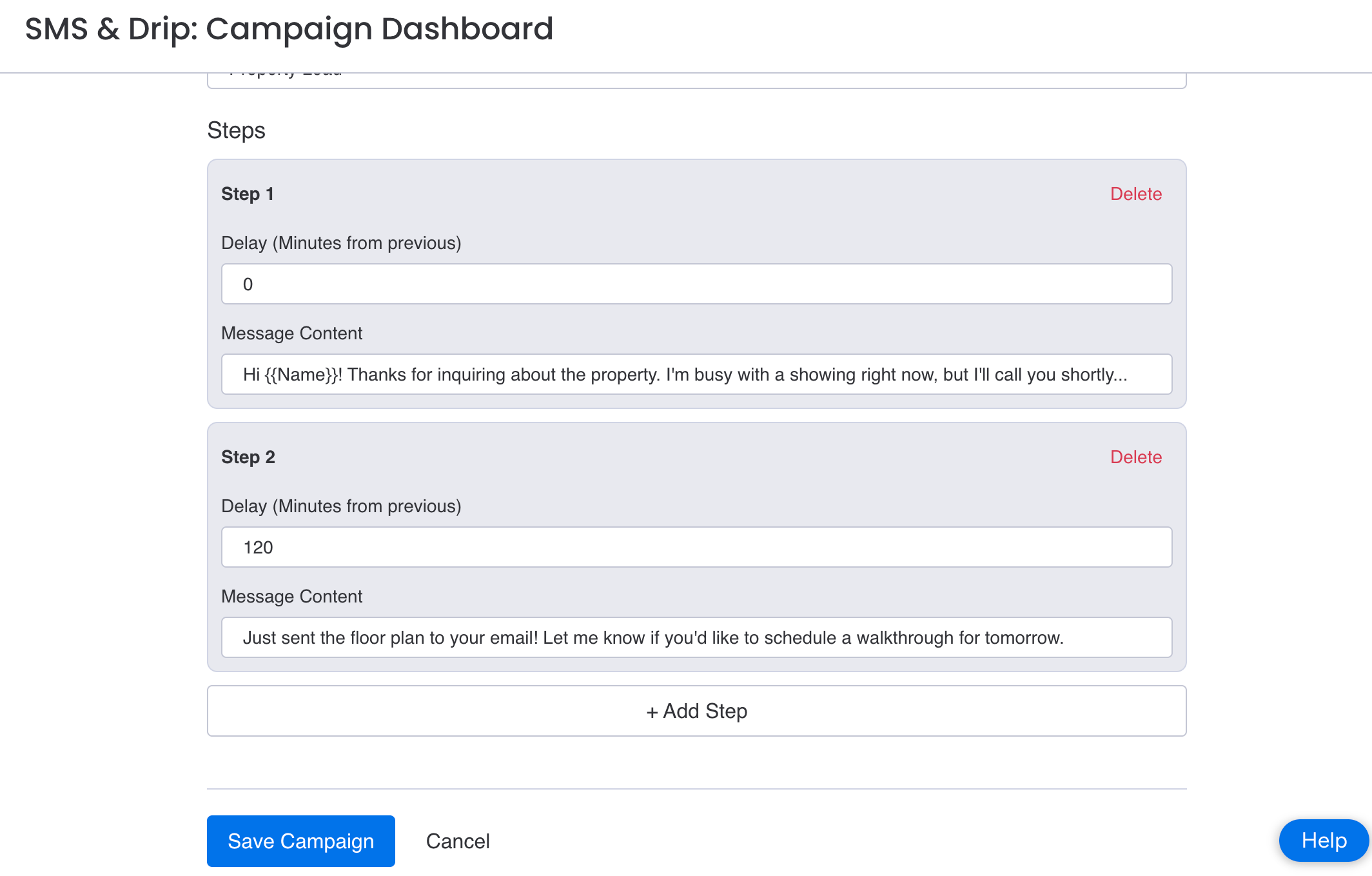
Create Campaign (Dashboard)
First, build your drip sequence visually within our intuitive dashboard.
-
•
Open the SMS & Drip app dashboard.
-
•
Click "New Campaign" and give it a memorable name.
-
•
Add your SMS blocks, setup personalized text, and configure timing delays.
Configure Automation (Workflow)
Next, seamlessly trigger this campaign directly from your board data.
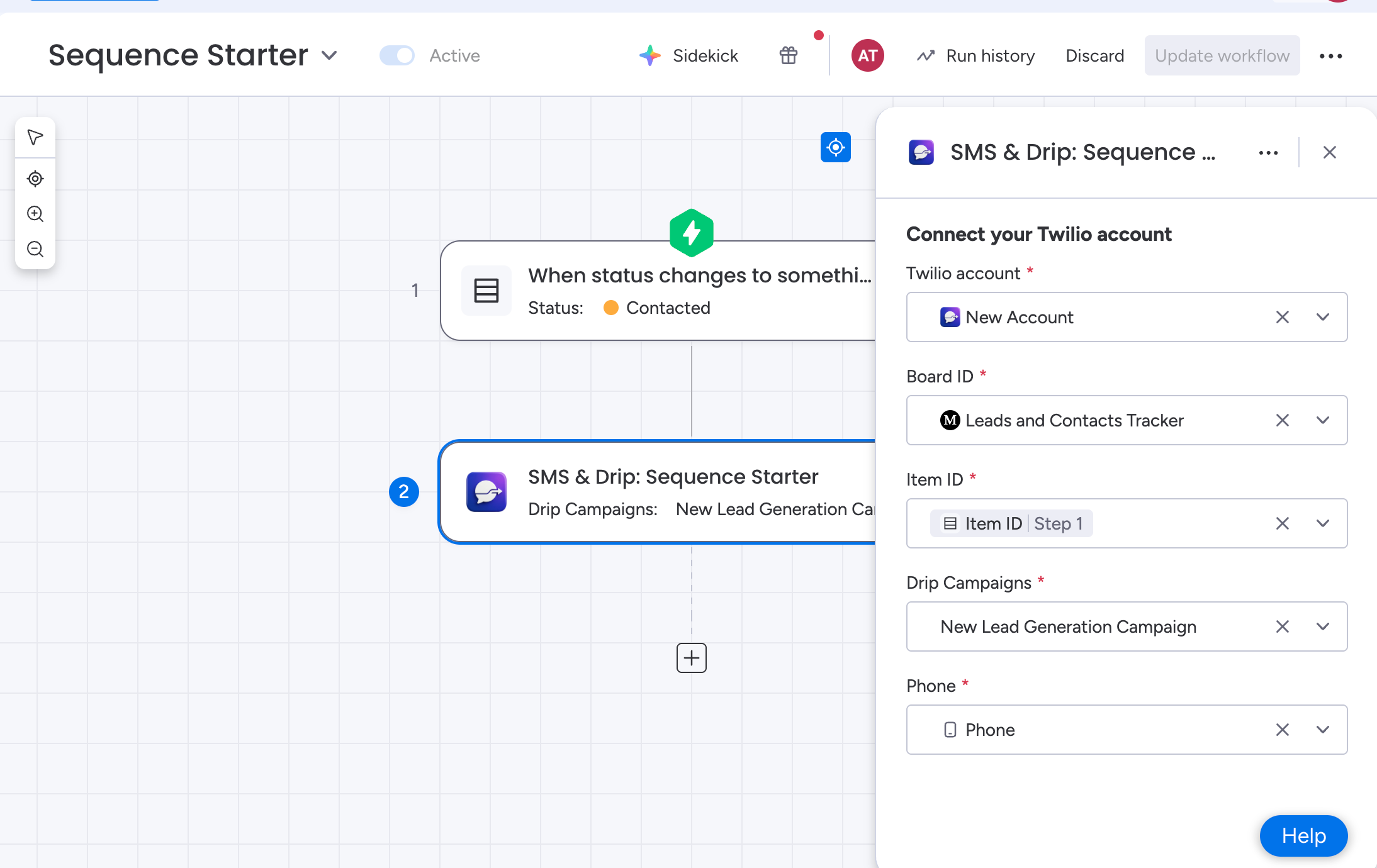
- Create a new monday.com Workflow.
- Select your trigger (e.g., "When status changes to...").
- Choose action: "SMS & Drip: Sequence Starter".
Map required fields:
- Columns: Map Board ID, Item ID, and Phone Column.
- Settings: Select Twilio account and your created Drip campaign.
B. Stop Campaign (Smart Stopper)
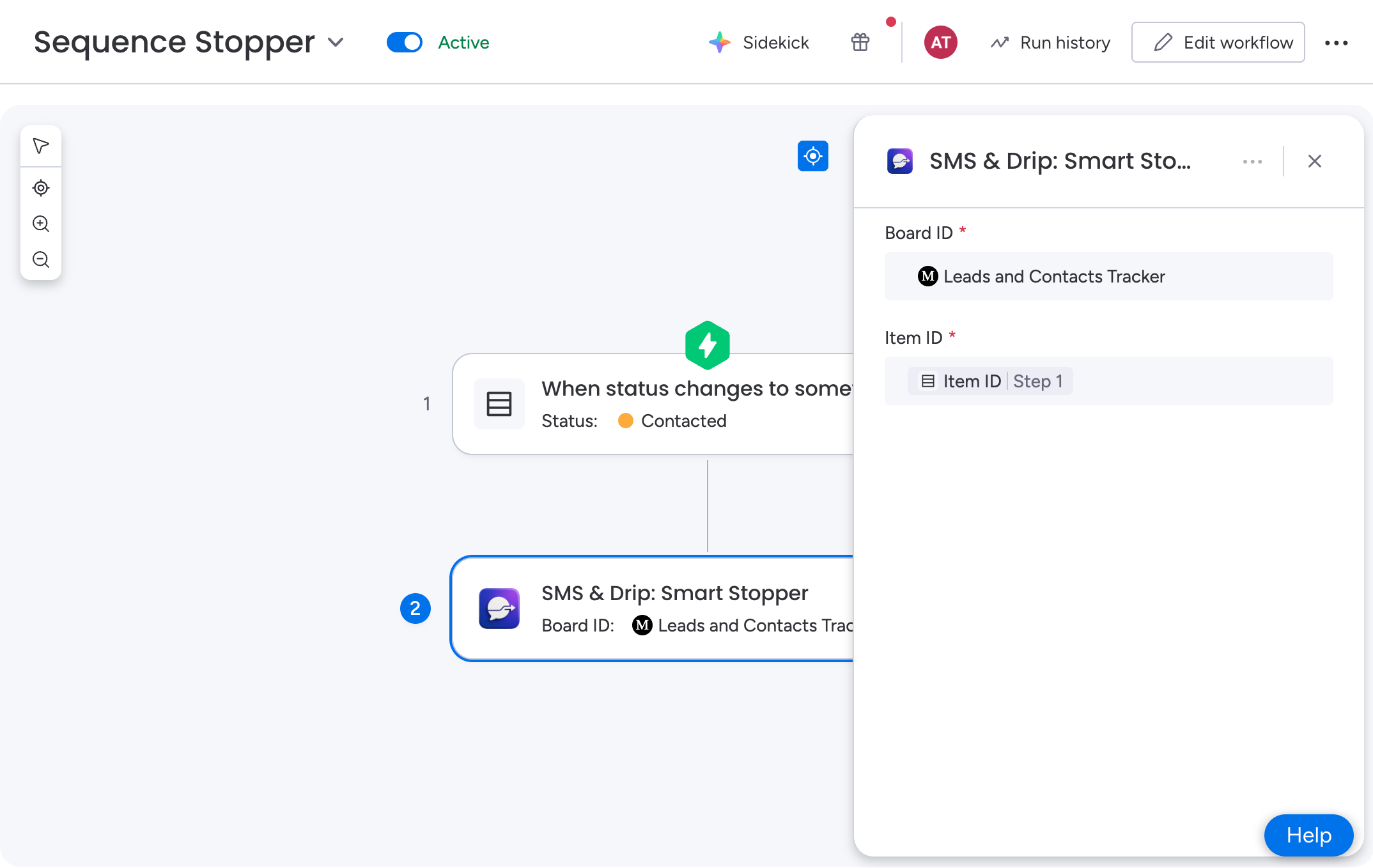
Cancel active campaigns instantly when an item's status changes (e.g., when a lead replies or converts).
- Create a new monday.com Workflow.
- Select your trigger (e.g., "When status changes to...").
- Choose action: "SMS & Drip: Smart Stopper".
C. Send One Message
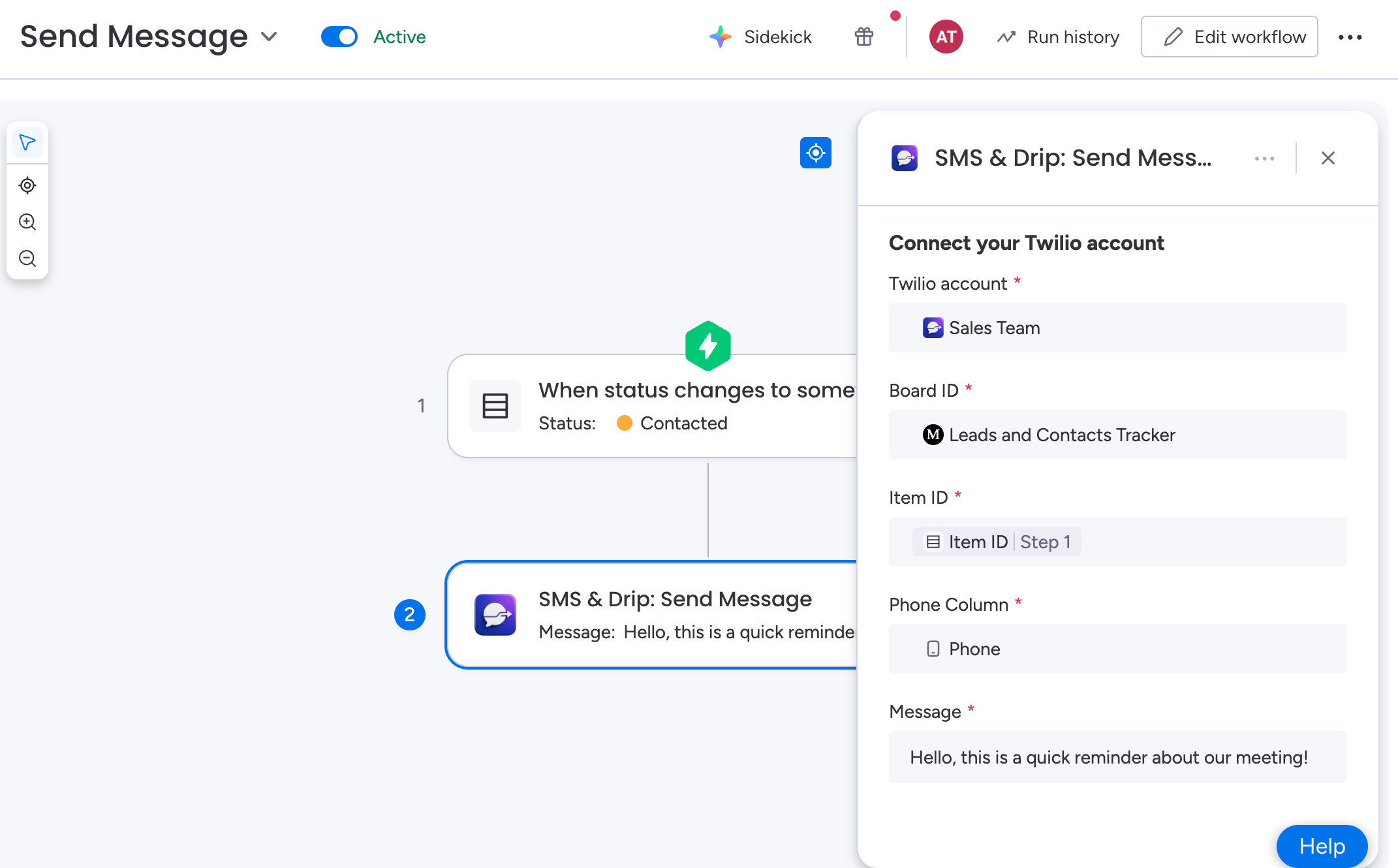
Send an ad-hoc, instantly customized message directly via board automation.
- Create a new monday.com Workflow.
- Select your trigger (e.g., "When status changes to...").
- Choose action: "SMS & Drip: Send Message".
Map required fields:
- Columns: Map Board ID, Item ID, and Phone Column.
- Settings: Select Twilio account and type your message natively in the action block.
3 Replies & Webhooks
Important Compliance Requirement: We can only enforce compliance (STOP/UNSUBSCRIBE) if we receive replies back to your number. This absolutely requires a properly configured webhook in Twilio.
Our system securely attempts to auto-configure your Twilio number the first time you use it. If you already have an existing webhook populated, we will NOT override it to protect your existing integrations.
Manual Webhook Configuration
If replies are not seamlessly working, manually set the "Messaging Webhook" URL in your Twilio Console to:
https://live1-service-33080281-d3a8e938.us.monday.app/api/twilio/reply
4 Compliance & Safety
Once your webhooks are actively syncing, our system handles carrier compliance automatically behind the scenes.
Automatic Opt-Out Keywords
If a user replies with any of these standard terms:
-
Future automated sequences are blocked immediately for that contact to ensure rigorous compliance.
-
Item status natively updates to Unsubscribed on your board for clean data tracking.